Saturday, 14 May 2016

Xamarin.Forms Workbooks

As explained in the last post, it's easy to add Nuget packages to Xamarin Workbooks. My immediate reaction to this news was "I want to use Xamarin.Forms!" Unfortunately it's not immediately obvious how to get Xamarin.Forms into a Workbook... so here are the steps (for an iOS Workbook):

1. Add the Xamarin.Forms nuget (and reference the platform)

When you add the Xamarin.Forms Nuget, four assemblies will be referenced (including the iOS Platform assembly for Xamarin.Forms). The using statements need to be added too - don't forget to add the Xamarin.Forms.Platform.iOS namespace:


2. Create a Page and App as usual

In both classes it's a good idea to create public properties for elements you want to manipulate in the workbook.

This allows those controls to be referenced later in the workbook...

3. Hack the FormsAppDelegate

The biggest hurdle to getting Xamarin.Forms to run is that in a normal iOS app, the AppDelegate must be a subclass of FormsApplicationDelegate to wire up various bits of Xamarin.Forms. Peeking into the open-source, the key thing we need to do is set the RootViewController... the following code does the initialization we need to get a Workbook running:


WARNING: obviously this approach misses some of the other code implemented in FormsApplicationDelegate so some things might not work as expected. This is a bit of a hack :)

4. Run It

The public properties on the App and Page classes mean the workbook can manipulate those elements to demonstrate various Xamarin.Forms capabilities.


Try it out with the WorkbookFormsTest workbook:


Check out the more complex ListView1 workbook too:


p.s. the irony of included screenshots of code is not lost on me - but hey, it's actually a good reason to download and us Xamarin Workbooks to try these samples out :D

Xamarin Workbooks with Nugets

Xamarin Workbooks are getting better and better (check out the intro to Workbooks if you don't know what I'm talking about).

Nuget packages can now be added, meaning you can teach or demo almost anything in a Workbook :)

In the Workbook app, choose File > Add Package... to open the Nuget package explorer:


Then search for the Nuget and add to the workbook:


Try out this Json.NET Workbook example to see how it works


Coming up next - adding the Xamarin.Forms nuget!

p.s. for a video demo of Nugets in Workbooks, check out this community contribution on brax.tv

Monday, 25 April 2016

Xamarin Evolve 5k

Update: thanks everyone who ran!


There's been a tradition for the more energetic attendees to do a morning 5k run during Xamarin Evolve - and 2016 will be no different! Xamarins have been out training most mornings, and we look forward to meeting and running with our customers. It's a FUN run, not a race - if you've got your gear and can complete the distance, please join us! Follow @conceptdev for twitter updates.

Date: Wednesday 27th (first day of conference, before the keynote)
Time: 6:15am
Place: outside Hyatt reception (near the flagpoles)

The Course

We'll run a flat 5km (3.2 mile) loop anti-clockwise around the conference center and surrounds:


It'll be early morning so traffic should be light (based on the past few days), however there are a couple of road crossings and safety will be the priority over speed. This is what the meeting place looks like at 6:15am:


For the speedsters, hang around at the end if possible to celebrate with everyone, get a group photo, and ensure you get mini-hack credit for completing the run!


Monday, 4 April 2016

Introducing Xamarin Workbooks

The first public demonstration of Xamarin's new Workbooks idea was Miguel de Icaza's //build 2016 talk "Mobile First" (although he first wrote about it back in February). In his talk, Miguel demonstrates a new take on interactive documentation in which a Markdown-formatted file can live-execute C# code-fenced blocks; not just in-line but also in an iOS or Android simulator.


This opens up a great opportunity to write and share interactive documentation that not only describes an API or feature, but shows it in action. Further, it's easy to write, being based on the well-known Markdown format.

Give it a try!

You can now try Workbooks for yourself! The editor can be downloaded here, and there is some Workbook documentation on the Xamarin developer portal.

I've thrown together a few very simple ideas on github:

See Miguel's talk (if you didn't already) for a really cool demo.

Some Notes


  1. They're written in Markdown, but with a .workbook file extension.
  2. Each file begins with a small JSON-formatted metadata section. The editor will add this for you.
  3. C# code inside triple-backtick code fences will be executed when the file is viewed in the Workbooks editor. 
There's sure to be other resources popping up now that the project preview is publicly available -- Ben Bishop's video is the first community resource I've seen. Can't wait to see what everyone creates with it!

Tuesday, 29 September 2015

iOS 9-ify your Xamarin.Forms App

It's not just regular Xamarin.iOS apps that can implement fancy iOS 9 features :) Check out the quick hacks I did to this Restaurant Guide Xamarin.Forms sample to add iOS 9 features:


Mostly using the magic of Dependency Service I added:


No special work was required to get the app running with iPad Multitasking, other than to ensure there was a Storyboard (or XIB) Launchscreen.


Finally, I added the Application Transport Security "opt-out" tags to the Info.plist file, so that the links to all the different restaurants would work in the WebView control.

Download the code from github to try for yourself!

p.s. Ignore the fact that this sample uses Razor templates to generate the restaurant detail view. That is merely a coincidence - this existing Xamarin.Forms sample was the most appropriate to add iOS 9 features to. iOS 9 features can be added to any Xamarin.Forms app, whether it displays data with XAML, C#, or in a Razor HTML template ;)

Sunday, 27 September 2015

iOS 9-ify your Xamarin App

With the iPhone 6s models now available, it's possible to build and test all the great new features of iOS 9 with Xamarin. To demonstrate, I've tried to squeeze as many iOS 9 features as possible into one sample: To9o app (that's "Todo" but with a "9" :-) The c# code is on github and screenshots of each iOS 9 feature are shown below.

3D Touch

3D Touch can used a few different ways, but requires an iPhone 6s to test (the Simulator doesn't support 3D Touch). I started by adding these two:

Multitasking for iPad

If the app can resize its UI appropriately, it should work fine for multi-tasking!

ContactsUI

The "Todo" app doesn't traditionally need an interface to the Contacts list, but I added it just to give this new API a try :)

New Search APIs

The new search APIs let you expose content to search and Siri. I've added both:
Notice the Back to Search button in the navigation bar.

UIStackView

This new layout option makes it much easier to build screens that 'scale', and also makes it even easier to support RTL languages (see below).
* Note: currently UIStackViews must be drawn using Xamarin's Xcode integration, but the built-in Xamarin iOS Designer will support them soon!

Collection View Changes

The main Todo list is a UICollectionView rather than a table, so it can demonstrate how easy it now is to re-order items with two simple methods added in code.

Right-to-Left Language Support

The entire app can now automatically flip (including UINavigationController animations) when displaying RTL languages like Arabic and Hebrew (note: machine translation used for example, apologies for any inaccuracies).

SFSafariViewController

This new API makes it easy to implement an in-app web browsing experience with a line or two of code. I've used it just for an "About" window.


All these improvements are explained in Xamarin's iOS 9 docs, and the code is available to review. It is still a work-in-progress so check back for more updates. 

Wednesday, 18 March 2015

Microsoft Band SDK + Xamarin

Band-fans were happy to see Microsoft release their Java Android SDK for Microsoft Band a few weeks ago, and their Objective-C iOS SDK this week. Xamarin was then able to almost immediately release the Microsoft Band SDK component for iOS and Android, giving you the same functionality but entirely in C# for all three mobile platforms...

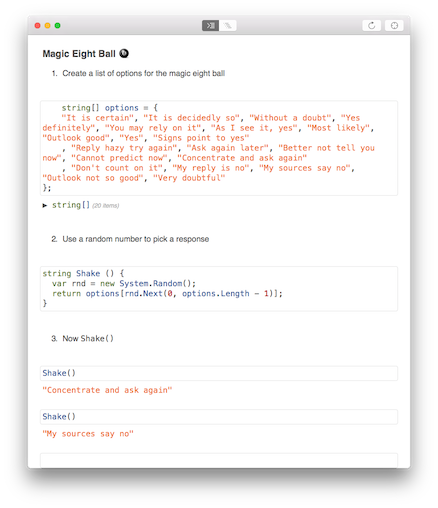
I decided to give it a try, converting my "magic eight ball" apps for Xamarin.Forms and Apple Watch to the Band. The idea is: you shake your wrist and the "prediction" appears on the Band!


It works because there is an Android app running on the paired phone, using the Band SDK. The app is tracking the Band's accelerometer, and using the readings to decide when you've shaken your wrist a couple of times.

When the shake-detection is triggered, the app picks a random number, pushes a new Tile onto the Band (if it doesn't already exist), and then sends a message for the tile with a random "prediction".

The Android app is simple, it contains only a Connect button to connect to the Band, and a Vibrate button to test the connection (plus a label that displays the "prediction" text that is sent to the Band).


The code for this Android sample is available on github, hopefully I'll get the iOS version running soon.

If you want to get more info about developing for the Band, check out Matt's detailed blogpost with code.


Finally, Microsoft built a quite detailed Android app that demonstrates all aspects of their SDK, and Matt did an amazing job of porting it to Xamarin - check that out too!


Saturday, 21 February 2015

Apple Watch Kit round-up

It's Saturday, a good excuse for a 'fun' post. Here's a little collection of tidbits about the Apple Watch...


Apple: Watch Kit - if you're thinking of developing for the platform, might as well start at the source :)

Wareable: The best Apple Watch apps... - some great screenshots of apps already being built, including Clear, BMW, and Nike. It's interesting to see the UI design approach being taken by different developers. Check out the similar list on ibtimes.com

WatchAware: Watch Apps - great catalog of watch app demos.

FastCompany: How the Apple Watch will work... - a couple of thoughts on app design, and screenshots of Todoist.

eleks labs' unofficial Tesla app - more design thoughts and prototype video (unofficial development, not affiliated with Tesla)..

Daring Fireball: On the Pricing of the Apple Watch - so yeah, "starting at $349" sounds like it's going to be the understatement of the year.

WatchKit FAQ - awesome collection of questions and answers (and cute watch drawings too).

MartianCraft: Designing for the Apple Watch with Briefs - even if you don't use the tool (which looks great) this is a lovely post on Watch app design.

Five Minute Watch Kit - good collection of blog posts.

If that's got you interested in building apps for the Apple Watch, it's time to check out Xamarin's Watch Kit Preview and how to get started (inc video) and my first watch app.


I've also got a couple of samples, including Magic 8 Ball, Calculator, Insta, and Todo for you to try.

^ watch frame screenshots generated with Bezel thanks to the fine folks at infinitapps.

Tuesday, 20 January 2015

Apple Watch Kit programming with C# (and Xamarin)

For my "Your First Xamarin.Forms App" talk at Evolve this year I built a very simple version of the classic "Magic Eight Ball" fortune-telling app. Seemed like a perfect example to adapt for my First Apple Watch App. It's built in C# using Xamarin (of course); Xamarin's Watch Kit Preview came out today!

Here is the finished app: a simple display that answers any question you ask ;-) Force Touch on the screen to pop-up the menu to ask another question (Shake), or simply say "Thanks". Grab the code from Github.
^ watch frame screenshots generated with Bezel thanks to the fine folks at infinitapps.

Apple Watch Projects

The solution structure for watch apps consists of three projects (notice that watch apps are split in two parts):
  • an iPhone app which delivers the watch app to the user (and is also obviously a regular iPhone app),
  • an Watch Kit Extension where the code for the watch app runs (on the iPhone, but separate to the iPhone app),
  • a Watch app which is only the storyboard and image resources that go to the watch itself.

Storyboard User Interface

After creating the three projects in a new solution, the first step is to draw the user interface in Interface Builder. Right-click on the Interface.storyboard (already in the template) and open in Xcode.

I did the following:
  • gave the interface controller a Title: 8Ball
  • dragged a Label and centered it
  • Ctrl + dragged an outlet from the label into the header file called result
  • dragged a Menu onto the scene (this is triggered by Force Touch)
  • added and named the two MenuItems: Shake & Back
  • Ctrl + dragged an action from the first menu item called shake
Remember: the storyboard (and any image resources) are the the only things that get installed on the watch itself.

WatchKit C# Code

With the user interface defined in the storyboard, I just needed to wire-up the outlet and action I created in C# to make the app work. The C# code will run in the Watch Kit Extension - on the iPhone itself, not on the CPU of the watch.

First I copied the Magic Eight Ball responses from my Xamarin.Forms app (it's a simple string array, called options) and then I started to implement methods in the InterfaceController.

The Awake method is called when the scene is created, so this is where the code selects its first random response to show the user. I store it in a local variable lastResult and also in NSUserDefaults (for the Glance, explained later).

public override void Awake (NSObject context)
{
 base.Awake (context);
 var rnd = new System.Random();
 lastResult = options[rnd.Next(0, options.Length - 1)]; 
 NSUserDefaults.StandardUserDefaults.SetString 
  (lastResult, "lastResult");
}

Then in WillActivate I set the label's text to the random value:

public override void WillActivate ()
{
 result.SetText (lastResult);
}
Finally, the menu's Shake button should choose a new random response, so the action is implemented to generate new new answer, set the local lastResult variable, the NSUserDefault, and also the label's text.

partial void shake () {
 var rnd = new System.Random();
 lastResult = options[rnd.Next(0, options.Length - 1)]; 
 result.SetText (lastResult);
 NSUserDefaults.StandardUserDefaults.SetString 
  (lastResult, "lastResult");
}

That's all the code required to get the app running! I did a couple more things, however, to demonstrate how to programmatically modify the Menu...

In the Awake method I add another menu item called Thanks:

AddMenuItem (WKMenuItemIcon.Accept, "Thanks", new ObjCRuntime.Selector ("tapped"));
The Selector is implemented as shown - notice the [Export] is required:
[Export("tapped")]
void MenuItemTapped () {
 result.SetText ("You're welcome!");
}

Glance Mode

I also implemented Glance mode, which simply displays the last response generated by the app.

The watch app template already includes a GlanceInterfaceController so I just had to drag a couple of Labels onto it, and Ctrl + drag an outlet for one, so I could change the text programmatically.


Because I always store a generated result in NSUserDefaults the GlanceInterfaceController, the code for the glance is really simple:
var r = NSUserDefaults.StandardUserDefaults.StringForKey("lastResult");
lastResult.SetText (r);


Currently you cannot test Glances from within Xamarin Studio, but it's easy to trigger it using Terminal and the following command (make sure you update path to match your app):

/Library/Frameworks/Xamarin.iOS.framework/Versions/Current/bin/mtouch --sdkroot=/Applications/Xcode-Beta.app/Contents/Developer/ --device=:v2:runtime=com.apple.CoreSimulator.SimRuntime.iOS-8-2,devicetype=com.apple.CoreSimulator.SimDeviceType.iPhone-6 --launchsimwatch=/Users/craigdunn/Projects/Watch8Ball/Watch8Ball/bin/iPhoneSimulator/Debug/Watch8Ball.app --watchlaunchmode=Glance

The finished glance display looks like this:

And that's it! Around 10 lines of C# code to build an Apple Watch app.

Download the Xamarin Watch Kit Preview, get the code from Github and try it for yourself!

Saturday, 17 January 2015

Microsoft Band: the end

I had a lot of fun with the Band initially.

Then after literally two seconds in the shower after a long run, it died. I doubt it got that wet - I literally stepped into the shower, noticed the Band was still on my wrist, then took it off and placed it out to dry.

But that was enough to kill it. The screen went all crazy and illegible. It was dead.


I had paid the $20 'extended warranty' fee, so the guys at the Microsoft Store grudgingly replaced it. I say grudgingly because one staff member really didn't seem sure about it; luckily another guy got involved and was more than happy to help me. They made it clear that if I hadn't paid for the extended warranty, they would not be replacing it at all.

Then they asked for another $20. To cover this Band with extended warranty. I was very annoyed by this. I didn't pay. But now I'm too scared to use the Band. What if, while running outdoors, it rains? The Band apparently will die at the slightest hint of water, and next time Microsoft promised they would NOT be replacing it unless I paid the additional $20.

So now I hardly wear it. It's in a drawer somewhere. So long, Microsoft Band, I hardly knew yea...

Microsoft: if you put a GPS in a fitness device, you're saying it's okay to use it outdoors. If that same device fails in the slightest mist of rain, the device itself is a failure.

Thursday, 6 November 2014

Microsoft Band (day 7: heart rate)

So far I've had the Band a week, and it's been on my wrist almost every second of that time (except charging). I'm surprised by how easily I got used to wearing it - it is still chunky, but light enough that I can cope :-)

The one remaining question people have asked is how good the heart-rate sensor is, so I did a couple of tests today both running and walking/sitting. I used the Band in conjunction with a Polar H7 chest-band paired with both the Polar and Strava apps. 


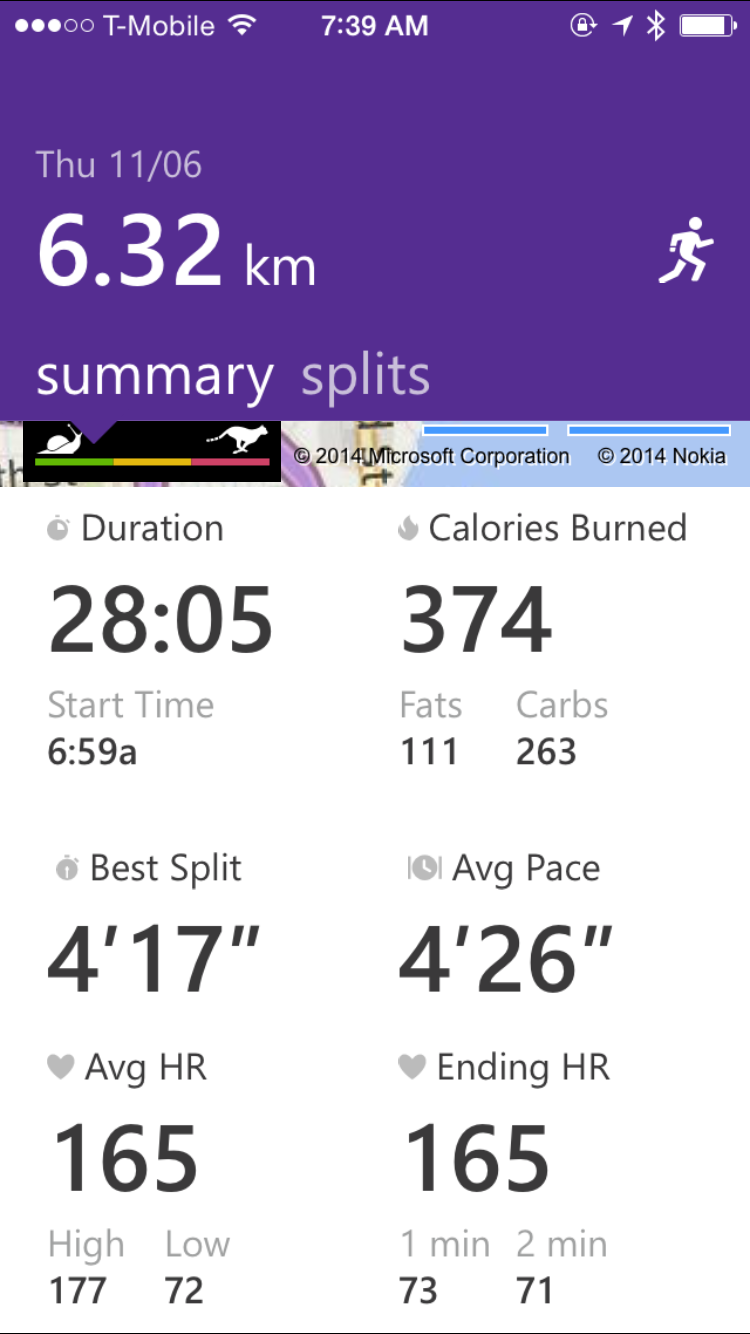
I expected the results to be pretty close (given how good the GPS performance is on the Band)... but turns out, not so much. Here's the heart-rate data from the Band - seems consistent with an average of 165 bpm (high of 177).


The Polar H7 chest strap data was slightly different though. Here is the graph from the Strava app; it recorded an average of 149 bpm (high 159).


And of course you can view the data from the Polar chest-strap in more detail on the Strava website:


So there's a bit of variation between what the Band reports and what was recorded on the chest-strap. I did another test just walking for 20 minutes; with the following result:

  • Microsoft Band reported average 107 bpm (high 147)
  • Polar H7 chest-strap reported average 81 bpm (high 93)

Only on the internet could two tests be considered a statistically valid sample, but there you go - looks like the Band's heart-rate sensor is not as accurate as a chest-strap ;-) In reality, any number of factors could contribute to the difference: maybe I didn't have the Band on tight enough, maybe face-up versus face-down on my wrist makes a difference, maybe the strap is the bad data, who knows?!


The Bottom Line

That's all the blog posts for now - my first week with the Microsoft Band is done.

Overall I still like it - I've gotten used to having it on, the sleep data is new and interesting, and it's a good run tracker (the GPS is as good if not better than my Garmin - and it definitely finds the satellites quicker). I love the notifications on the Band: text messages, email, Facebook, etc... these could be the things that keep me using it after I get bored of the other stuff :)

The negatives are minor, but important for some. The battery realistically only lasts a full day - the minute you use the GPS functionality you're going to have to charge again within 24 hours. People report longer times but I doubt you are really getting the full use of the watch if you're stretching the battery so long. The other hardware issue is the question-mark over the heart-rate sensor ~ I'll leave it for people with more patience than me to do an exhaustive test, but as the disclaimer says "this is not a medical device" and it's probably as good as you can expect for a device of this size.

Finally, though, even assuming the battery lasted a week and the HR was spot-on, I would still not be able to use the Band as my only fitness-tracking device, purely because the data is locked into the Microsoft Health ecosystem. While there is no way to export ALL the data (into Strava or similar systems) I'm just not willing to give up my current devices.

Wednesday, 5 November 2014

Microsoft Band (day 6: data)

Short update today, answering two questions I've heard a lot about the Band:

  • Can the data be exported?
  • Does it work for cycling?

Can data be exported?

The short answer here is "no"; at least I have not found a way to get any of the raw data out of the Band or the Microsoft Health app. There are Connected Apps partners with Microsoft, including RunKeeper, so I signed up for their service to see how much data is shared.

The first problem with Connected Apps is that (apparently) your past data is not shared. This meant that after I joined there was no way for me to upload the half-marathon data from last weekend. New activities, however, seem to appear on RunKeeper as soon as they're sync'd to Health.

The second 'problem' is that only a summary of each activity is available... here is the information available on RunKeeper after a 5 km run this evening:


No details are available in the Connected App - no kilometer splits, elevation chart, map track or heart rate data :-( I would really like to get the running data (heart rate, GPS track as GPX) from my Band activites, and/or sync them automatically with Strava... however if the only integration possible with Strava is a 'summary' such as that shown above - I wouldn't bother!

Interesting statistic shown on the RunKeeper website...
1139 RunKeeper users also use this app
I wonder just how many Bands have been sold so far...


Does it work for cycling?

There's no particular reason why the Band won't collect data (GPS track, heart rate, etc) from a cycling effort as well as a run... I tried it out and it works fine. The problem with this is categorizing that workout in your training records. The speed/average pace recorded for a bike ride will far exceed your running capacity ;) and the heart-rate will be a lot less; making the calorie calculations also useless. 

If metrics are important to you (and they probably are, if you're reading this), then "no" the Band isn't much use for cyclists compared to the myriad of other options available.